An Illustrator package design can look complete on the designer’s computer and still arrive at a printer with missing product photography, textures, or QR artwork. The usual cause is simple: the .ai file contains a reference to an external image, but the recipient does not have that source file or its original folder path.
Embedding solves that portability problem by storing the image inside the Illustrator document. It does not, however, improve resolution, correct color, add bleed, or make the artwork press-ready. The better packaging workflow is to choose deliberately among linked, embedded, and packaged assets—and then verify the complete production file before release.
The quick answer: use the Links panel
To embed an existing linked image in Adobe Illustrator:
Open the Illustrator document and save a working copy.
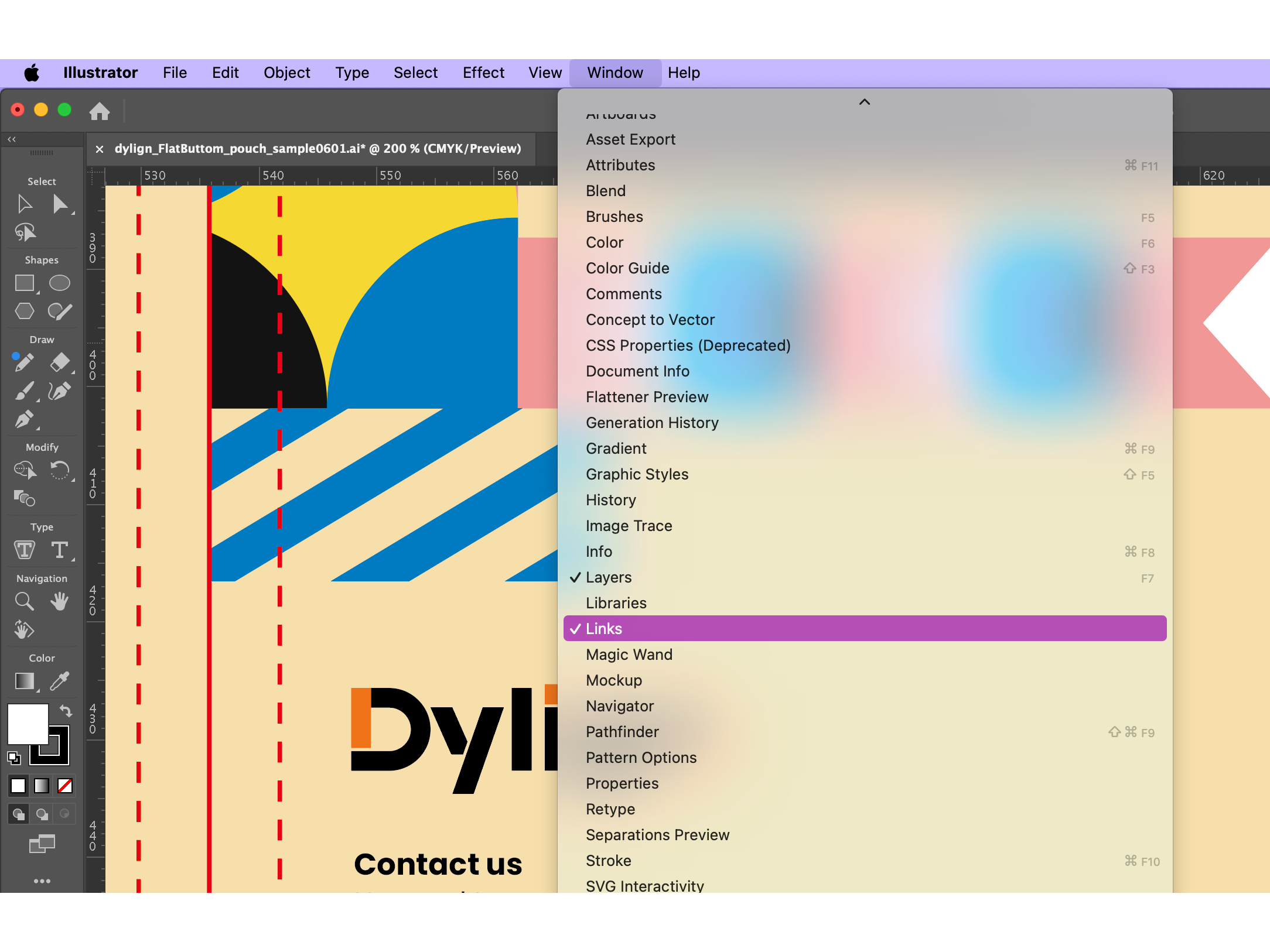
Choose Window > Links.
Resolve any Missing Link or Update Available warnings.
Select the image in the Links panel.
Open the panel menu and choose Embed Image(s).
Confirm that Illustrator identifies the asset as Embedded Link.
Save, close, and reopen the production copy before sending it.
Adobe’s current documentation confirms that an embedded file becomes part of the Illustrator document, is no longer connected to its source, and increases the Illustrator file size because the artwork is stored in the document. Adobe: Embed and unembed images and files
What “embedded” actually means in Illustrator
A linked image remains an external file. Illustrator displays it in the artwork while maintaining a connection to the source asset. If that source changes, Illustrator can report an update; if it moves or disappears, Illustrator can report a missing link.
An embedded image is stored inside the Illustrator document. The file becomes self-contained, but Illustrator no longer tracks changes to the original source image. Adobe describes linked assets as useful for smaller Illustrator files and automatic updates, while embedded assets are useful for self-contained documents and easier sharing. Adobe: Links panel overview
The package is different: it is not a third image status. It is a handoff operation that collects the Illustrator document and its linked assets into one folder, with an option to relink the packaged document to those collected files.
Workflow | Where the image data lives | Source updates | File-size pattern | Main risk | Best packaging use |
|---|---|---|---|---|---|
Linked | In a separate source file | Illustrator can detect or apply source changes | Smaller .ai; source files remain separate | Missing or outdated links during handoff | Active design work, large PSD files, shared assets, frequent retouching |
Embedded | Inside the .ai document | No automatic connection to the original | Larger .ai | Stale embedded art may be overlooked; external editing is less direct | Compact final handoffs with stable images and no expected image revisions |
Linked + Package | In collected source files beside the packaged .ai | Links remain editable within the collected folder | Size is distributed across the package | A recipient may receive an incomplete folder if it is split or altered | Printer or agency handoff when editability and original linked files matter |
The decision is therefore not “Are embedded images always better?” It is “Which handoff method preserves every required asset while supporting the next person’s work?”
Step 1: inspect the document before embedding anything
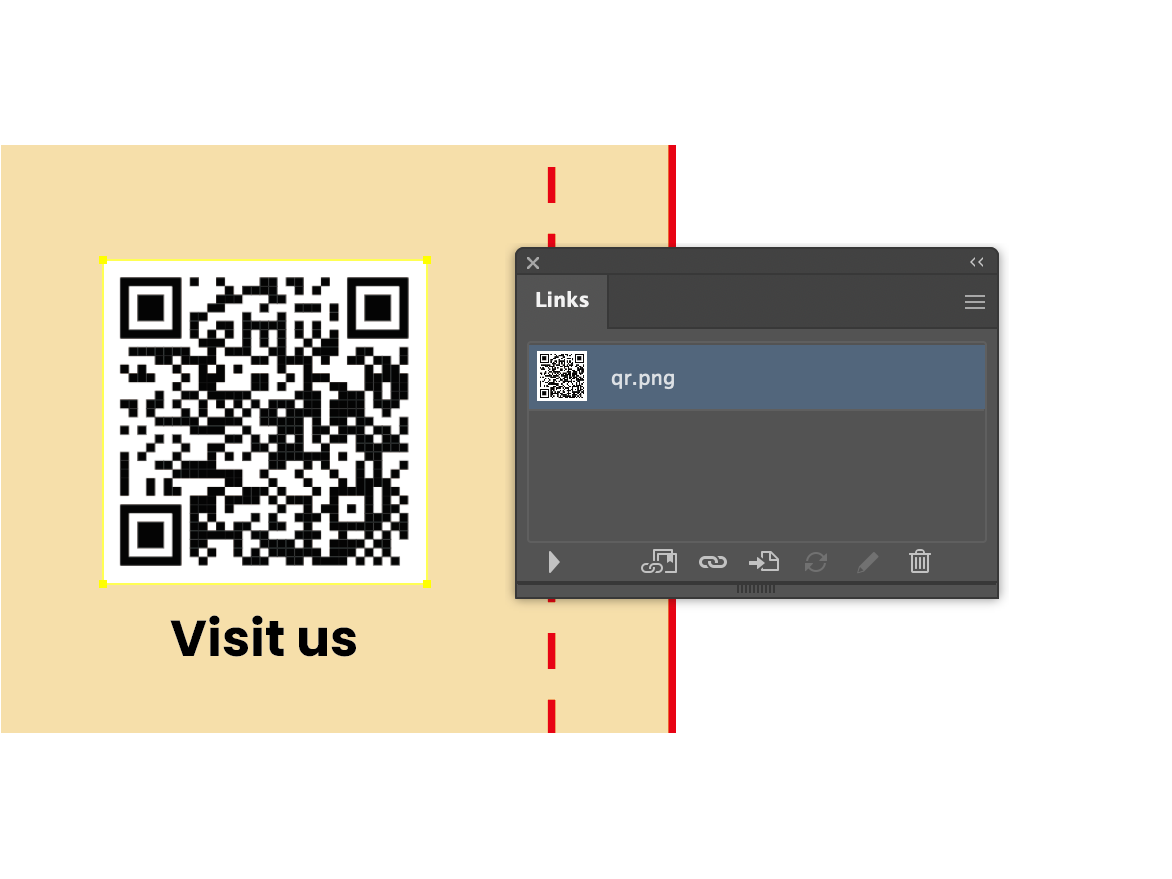
Open Window > Links. The Links panel is the control center for placed artwork and shows whether an asset is linked or embedded. It also flags missing or modified sources. Adobe: Links panel overview
Open Window > Links to review every placed asset. Original workflow screenshot supplied with the packaging file-submission guide.
Do not embed a warning state without first investigating it. If Illustrator cannot find a source, embedding whatever preview remains on screen is not a reliable substitute for recovering the approved production image.
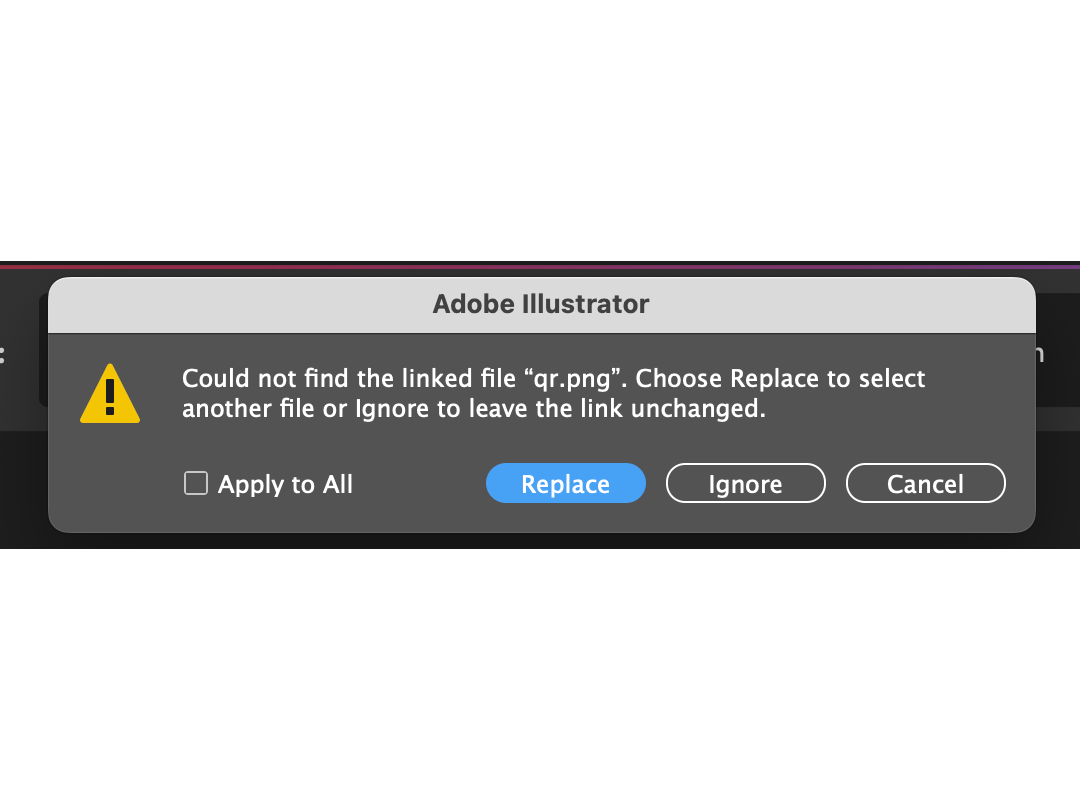
A missing-link warning means Illustrator cannot locate the original source at its recorded path.
Use Relink to reconnect a missing source. If Illustrator reports Update Available, confirm that the revised source is approved before selecting Update Link. Current Illustrator can also relink matching instances and search for other missing files in the same folder. Adobe: Relink, replace, or update linked files
Step 2: record the image data that matters to print
Before embedding, inspect the link information. Adobe’s Links information view can report the file name, format, location, effective PPI, original dimensions, scale and rotation, creation and modification dates, transparency, and—while an image is linked—its color space and profile. Adobe notes that color-space information can be blank for an embedded file, so recording the production-relevant data before embedding is useful. Adobe: Links information
Field to review | What it tells the packaging team | Decision before release |
|---|---|---|
Status | Whether the asset is linked, embedded, missing, or modified | Resolve every warning and confirm the approved version |
Name and format | Which source file Illustrator is using | Match it to the approved asset register or job folder |
Location | Where the linked source is stored | Confirm the source will be embedded or included in the package |
Effective PPI | Pixel density at the placed size | Compare with the printer’s requirement; do not assume one universal PPI target |
Dimensions and scale | Whether enlargement has reduced effective resolution | Review oversized images before final output |
Color space and profile | How the raster asset is described for color management | Follow the printer’s documented color workflow |
Modified status and date | Whether the source changed after placement | Approve, update, or reject the change before embedding |
Transparency | Whether the image includes transparent areas | Inspect edges, blending, and output behavior in proofing |
Embedding preserves the current placed image data; it does not create missing pixels or correct an unsuitable profile. This is why a link audit should come before the Embed command.
Step 3: embed the approved image
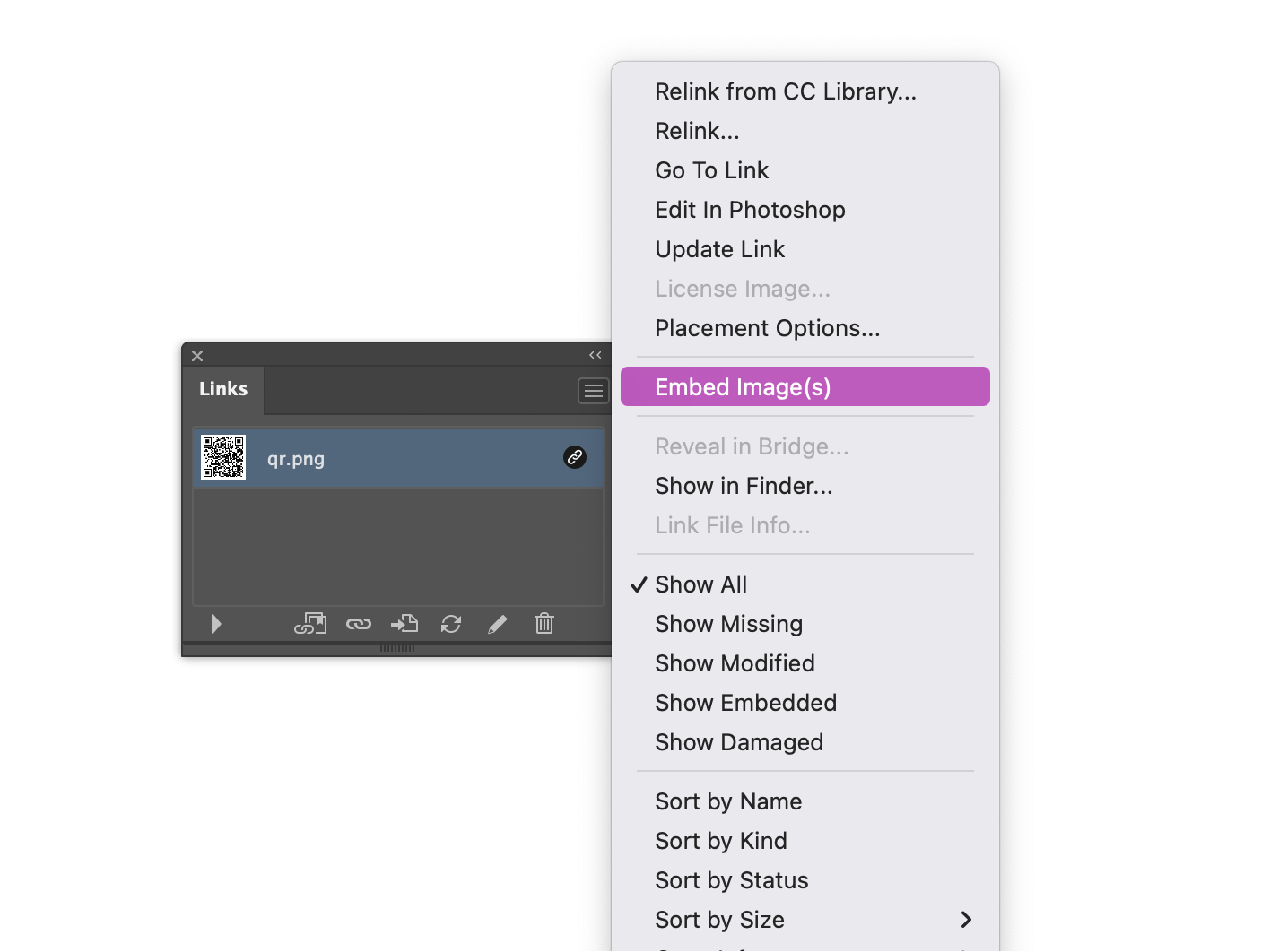
In the Links panel, select the approved linked asset. Open the panel menu and choose Embed Image(s). Adobe uses that exact command in its current workflow. Adobe: Embed and unembed images and files
Select the linked asset, open the Links panel menu, and choose Embed Image(s).
You can repeat the process for each intended image or select multiple panel entries when the same decision applies to all of them. Do not treat bulk embedding as a substitute for checking which version of each asset is approved.
When placing new artwork through File > Place, Illustrator can place selected files as linked or embedded assets. Regardless of the choice made in the Place dialog, verify the result in the Links panel instead of relying on memory. Adobe: Place multiple files
Step 4: verify the embedded status
After embedding, Illustrator should identify the file as Embedded Link. Interface icons can vary by version and workspace, so the status shown in the Links panel is more reliable than judging the artwork by appearance alone.
The image remains in the artwork, but the live external link is no longer present. Confirm the embedded status in the panel.
Then perform a simple handoff test:
Save the file under a controlled production name, such as brand_sku_panel_v07_PRINT.ai.
Close Illustrator.
Reopen the saved file.
Open Window > Links again.
Confirm that the intended assets are embedded and that no unresolved warning remains.
Generate the required proof or output PDF using the printer’s specifications.
Keep the editable working file and the released production file separate. That preserves live text, original links, and revision flexibility even when the final handoff is intentionally self-contained.
When Package is better than embedding every image
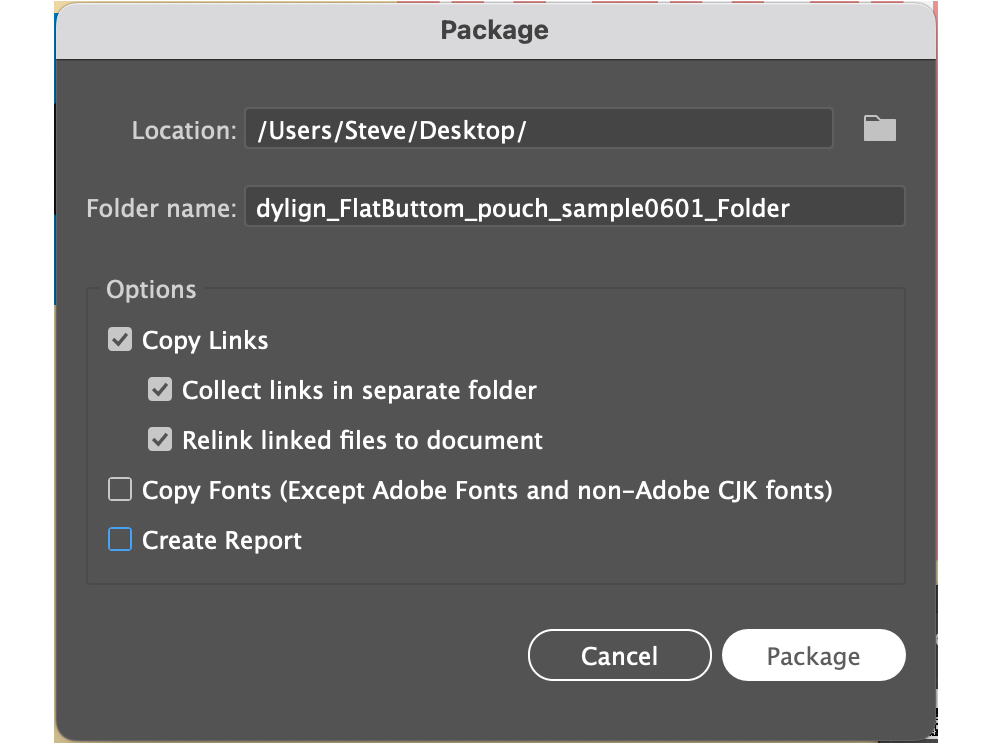
Large layered PSD files, high-resolution product photography, and frequently updated promotional art can make an all-embedded Illustrator file difficult to transfer and slower to manage. Adobe’s File > Package workflow can collect the Illustrator document, linked graphics, eligible fonts, and a package report into one folder. The available options include Copy Links, Collect Links in a Separate Folder, and Relink Linked Files to the Document. Adobe also warns users to check font-license permissions before copying fonts. Adobe: Package files in Illustrator
A packaged handoff keeps linked assets editable while collecting them into a controlled folder structure.
Use the following decision rule:
Production situation | Preferred route | Why |
|---|---|---|
A small final label or carton file with stable raster assets | Embed approved images | One self-contained .ai reduces missing-path risk |
A large file with layered PSDs that prepress may need to adjust | Link + Package | Preserves editable source assets without inflating one Illustrator file |
An image is shared across many SKUs and still changing | Keep linked during development | One approved source can be updated across dependent files |
A supplier explicitly requests a self-contained Illustrator file | Embed, then verify | Meets the requested delivery format, subject to the supplier’s full spec |
A supplier requests editable native files and all source assets | Package the project | Provides the .ai, collected links, and report in one folder |
Only a print PDF is requested | Follow the supplier’s PDF preset | Embedding is not a substitute for the required PDF/X, bleed, color, font, or overprint settings |
What embedding does—and does not—control
Control | Does embedding solve it? | Required check |
|---|---|---|
Missing external image path | Yes, for the embedded asset | Confirm Embedded Link after reopening |
Automatic image updates | No; embedding stops source tracking | Confirm the approved image version before embedding |
Effective image resolution | No | Check effective PPI at final placed size against the printer’s spec |
Color conversion or profile choice | No | Use the approved color-management and output workflow |
Bleed | No | Extend required artwork into the manufacturer’s defined bleed area |
Dieline size and position | No | Keep the approved dieline dimensions, layers, and spot-color conventions unchanged unless authorized |
Font availability | No | Follow the printer’s font-delivery or outlining requirements and retain an editable master |
Overprint and separations | No | Inspect separations and overprint behavior in the agreed prepress workflow |
Barcode or QR performance | No | Validate code artwork, size, contrast, quiet zone, and printed sample under the applicable specification |
Editable PDF data | No | If Illustrator editability is required, use the requested PDF settings |
If a PDF must reopen as editable Illustrator artwork, Adobe’s Preserve Illustrator Editing Capabilities option saves Illustrator data in the PDF, but it can increase file size and work against aggressive compression or downsampling. Use it only when the receiving printer or workflow requires that editability. Adobe: PDF options Adobe also documents File > Save As > Adobe PDF and PDF/X creation as separate output choices; the printer’s specification should govern the preset and output settings. Adobe: Create Adobe PDF files
Packaging artwork handoff checklist
Check | Owner | Pass evidence |
|---|---|---|
Approved image version | Designer / brand owner | Asset name or revision matches the approved job record |
Links status | Designer / prepress | No missing or unintentionally modified links |
Embed or Package decision | Designer / printer | Handoff method matches the printer’s written requirement |
Effective PPI | Designer / prepress | Values reviewed at final placed size |
Color workflow | Prepress / printer | Profiles, separations, and output intent follow the job specification |
Dieline integrity | Structural / prepress | Dieline dimensions, layers, and production marks are unchanged unless approved |
Bleed and safe areas | Designer / prepress | Artwork extends and critical content clears boundaries as specified |
Fonts | Designer / prepress | Font handling follows the printer’s requirement; editable master retained |
Variable codes and legal copy | Brand / quality / regulatory | Content matches the approved SKU and market version |
Final reopen test | Designer | Released file reopens without image warnings |
Proof approval | Brand / quality / printer | Approved proof or sample is tied to the released revision |
Common mistakes to avoid
Embedding a low-resolution preview
If the original image is missing, recover and relink the approved source before embedding. A screen preview is not evidence that the production-resolution asset is intact.
Assuming embedded means current
Once embedded, the file no longer follows source changes. A corrected ingredient illustration, promotional badge, or product render can remain stale inside the .ai file unless the team replaces or re-embeds it.
Sending only part of a packaged folder
Packaging works because the document and collected assets retain an organized relationship. Compress and transfer the complete package folder; do not pull out only the .ai file.
Treating one printer’s rule as universal
Converters, label printers, folding-carton suppliers, and flexible-packaging vendors can require different native files, PDF presets, color settings, marks, and naming conventions. Ask for the current written artwork specification for the actual plant and print process.
FAQ
Does embedding an image make it higher resolution?
No. Embedding changes where Illustrator stores the image data. It does not add pixels or restore detail lost through enlargement or a low-resolution source.
Why did my Illustrator file become much larger?
Embedded artwork is stored inside the Illustrator document, so the .ai file grows. The increase depends on the number, format, dimensions, and data complexity of the embedded assets.
Can I edit an embedded image later?
Illustrator can unembed an image, saving it as a separate PSD or TIFF and linking the document to that extracted file. This can help recover an external workflow, but it is not a substitute for preserving the original approved source asset. Adobe: Embed and unembed images and files
Should I embed every image before sending packaging files to print?
Only if that matches the printer’s requirements and the file remains manageable. For large or editable source assets, a complete Illustrator package may be the stronger handoff.
How can I confirm there are no missing images?
Open Window > Links, review every status, save the release file, close it, reopen it, and inspect the panel again. If using Package, also confirm that the collected Links folder and report are included.